 Garden

Affiliate Disclosure
Some links on this page are affiliate links. As an Amazon Associate, we earn from qualifying purchases — at no extra cost to you. We do not buy, test, or physically handle the products we cover; our rankings come from aggregated owner reviews, ratings and expert consensus. Commissions never change our verdicts. How we rank · full disclosure.
Installing a Wi-Fi extender is a 15-minute, no-tools job: plug it in, connect it to your router, and place it well. Cost is $20 to $80. There is no wiring and no risk. The catch is that an extender helps only if you place it correctly — halfway between the router and the dead zone, where the router's signal is still strong. Put it in the wrong spot and it can actually slow your network. For one or two dead zones an extender is the right, cheap fix; for a whole large home, a mesh system is better.
Find the sweet spot first
Before mounting anything, identify where your router's signal fades. Walk with your phone watching the signal bars, or use a free Wi-Fi analyzer app. The extender belongs at the last spot with a strong signal (two to three bars) on the way to the dead zone — not in the dead zone itself. This placement rule matters more than the extender's price.
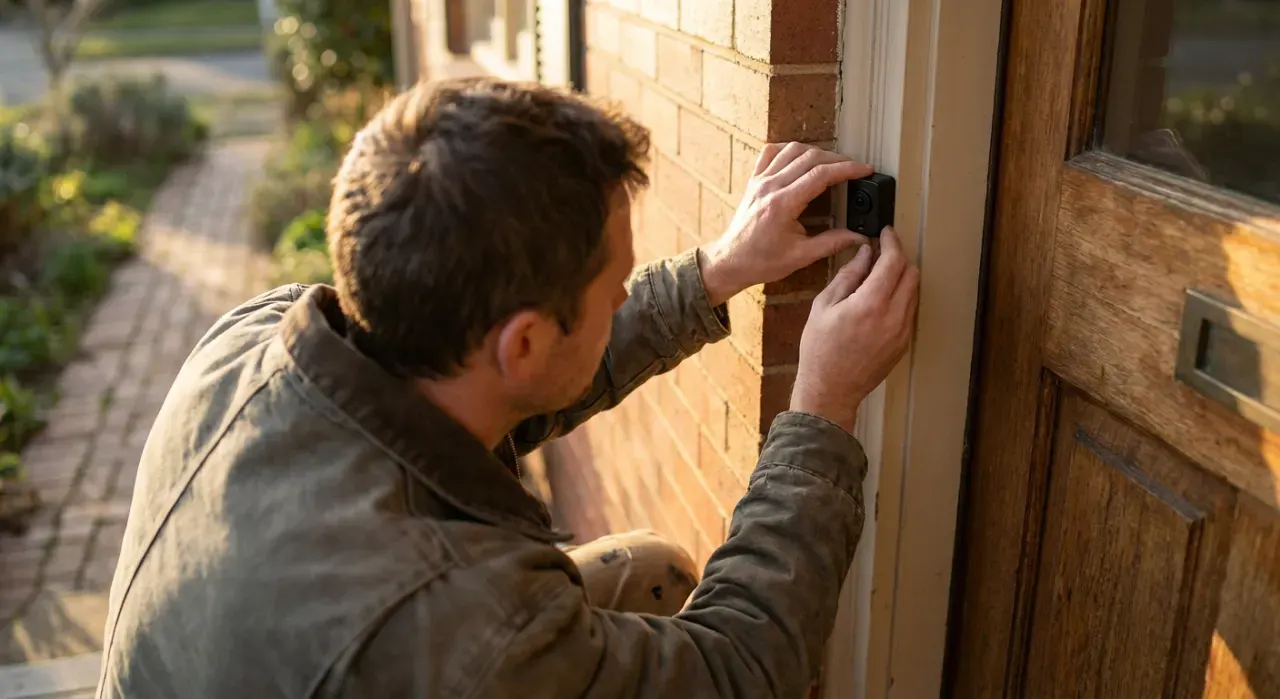
Step-by-step setup
- Plug the extender in near the router. For initial setup, keep it close to the router so it pairs cleanly. You will relocate it after.
- Connect to the extender. Join its default setup network from your phone or laptop, or open the setup app.
- Run the setup wizard. Choose your home network from the list, enter your Wi-Fi password, and select which band(s) to extend. On a dual-band unit, extend both.
- Name the extended network. Use a clear name (or match your main network if the extender supports seamless roaming) so devices know which to join.
- Relocate to the sweet spot. Unplug and move the extender to the halfway point you identified. Give it a minute to reconnect.
- Check the signal indicator. Most extenders have an LED that goes green at a good location and amber or red if the router signal there is weak. Adjust the outlet until it reads green.
- Test the dead zone. Take a device to the previously dead area and run a speed test. Confirm you now have a usable connection.
- Connect edge devices. Point outdoor cameras, doorbells or the garage controller at the extended network so they stay online.
No tools, one decision
An extender needs nothing but an outlet and your Wi-Fi password. Its most common job in a smart home is rescuing edge devices that keep dropping — the outdoor cameras in our security camera picks, the video doorbell, or the smart garage controller that all sit far from the router. If a single extender does not cover your whole property, a mesh system is the upgrade; our smart home hub guide covers building a reliable connected network, and the DIY security system roundup notes which kits are most bandwidth-sensitive.
Mistakes that make an extender useless
- Placing it in the dead zone. It rebroadcasts a weak signal, so you get bars but no speed. Put it where the router signal is still strong.
- Using a single-band extender for heavy use. It halves throughput. Choose dual- or tri-band.
- Skipping the placement LED. The signal indicator tells you if the spot works. Chase the green light.
- Expecting extender to fix a whole house. One or two dead zones, yes; a large home, get mesh.
Do you need a pro?
No. A Wi-Fi extender is plug-and-app with zero electrical or structural work, so there is nothing that requires a trade. The only time to bring in help is if your dead zones stem from a wiring or ISP problem — for example, if you want Ethernet runs to distant rooms or a wired access point, which involves pulling low-voltage cable and may warrant a network installer. The extender itself is always a homeowner task.
We never buy, test or physically handle the products we rank. Recommendations come from aggregated owner reviews, star ratings, review volume and expert consensus — see how we rank.
More from this hub: Smart Home & Security · Mounting outdoor cameras · Installing a smart garage opener · Setting up a smart home hub · Best security cameras · How we rank